Getting started
Taped needs macOS 14 Sonoma or later, on Apple silicon or Intel. Download the DMG from the front page, open it and drag Taped to Applications. The app is signed and notarized; checksums are in SHA256SUMS.txt.
Homebrew
brew tap istvandrahos/tap
brew install --cask taped
The cask also links the taped command line into /usr/local/bin.
First launch
Taped appears as a cassette in the menubar and opens a short tour, one decision per step: where Taped should live (menu bar or Dock, and whether the Library opens at launch), the ⌥⇧D hotkey and the other ways a link gets in, the downloads folder and Mac-compatible conversion, the Library, what runs on its own (subscriptions, the command line, the inbox folder), and a sample tape you can download to see the whole thing work. Skip it if you like; it is in the menubar menu under Welcome to Taped… and in Settings → General whenever you want it back.
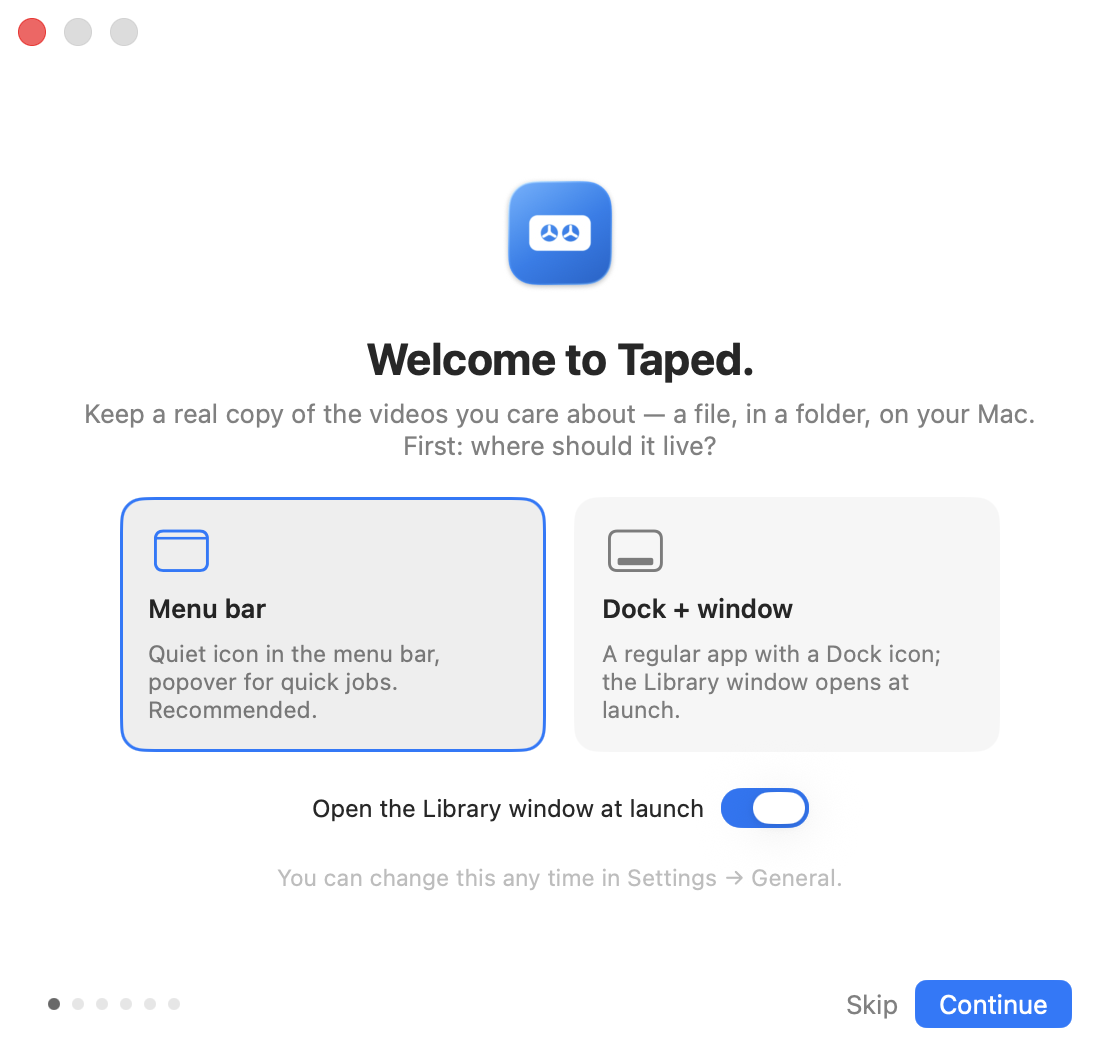
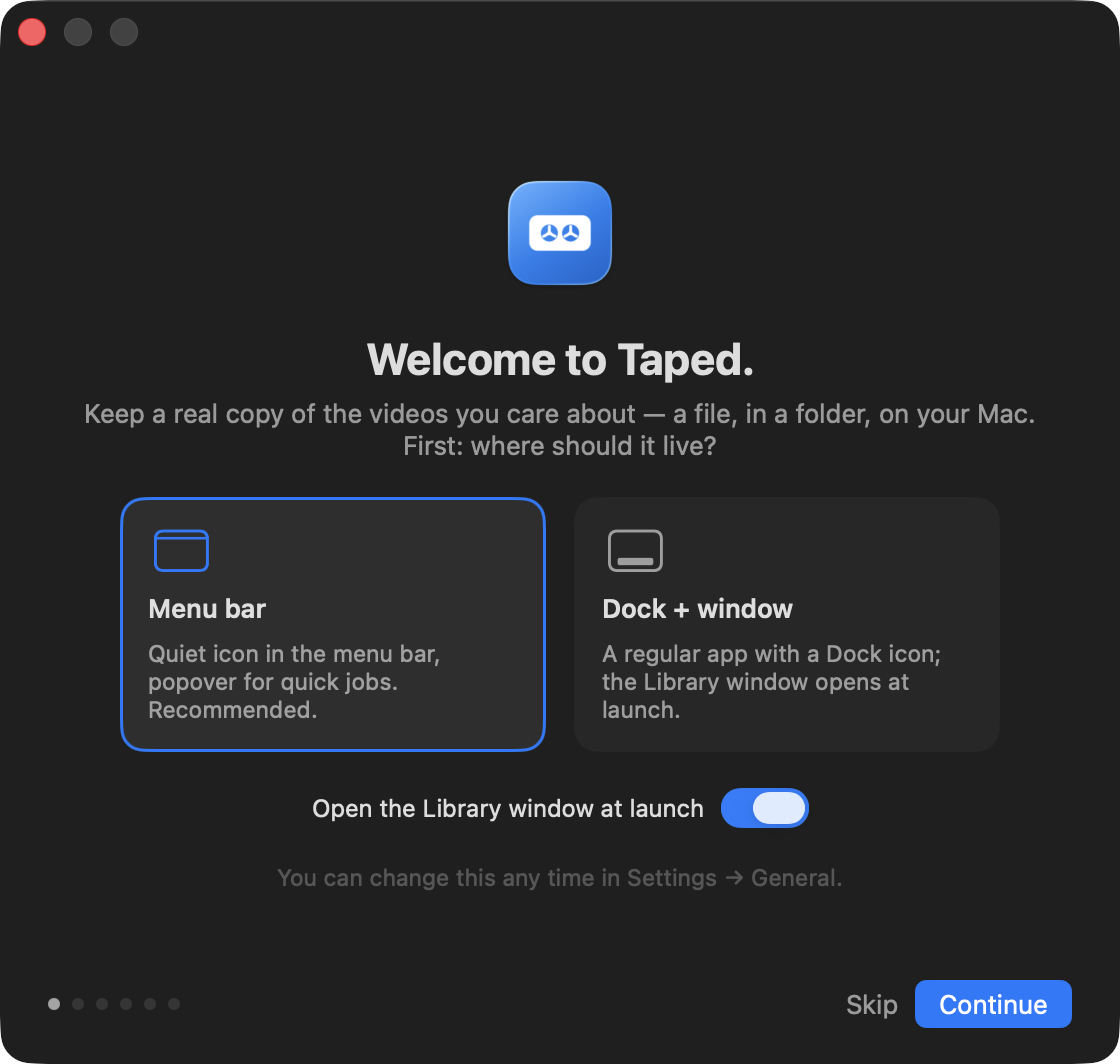
On first use macOS asks for permission to show notifications (for “finished” and “failed”) and, if you turn on browser cookies later, for the access that needs. Nothing else is requested.
Your first download
- Copy a video link in your browser.
- Click the cassette in the menubar. The link is already in the field.
- Pick a quality (Best is fine) and press ⏎.
- Watch the icon. When it is done, the file is in
~/Downloads/Taped; click the folder in the popover’s footer to see it.
Menubar app or Dock app
Taped is a menubar app by default. Turn off Show Taped in the menu bar in Settings → General and it becomes a regular app with a Dock icon and the Library window as its main window. ⌥⇧D works either way. Quit from the menubar menu, or with ⌘Q when the Library is frontmost.
Capturing links
Every route below ends in the same queue. Which one you use is a matter of what is closest to hand.
The popover
Click the cassette. If a link is on the clipboard, it is already in the field; otherwise paste one, or several, one per line. Pick a quality and press ⏎. The popover closes when you click away; click the pin to keep it open.
Quick Capture, ⌥⇧D
Press ⌥⇧D in any app. The panel shows the video’s title, channel, duration and the qualities it offers. ⌘⏎ downloads; Esc cancels. More opens the per-video options: container, audio format, subtitle languages, a clip from–to, a profile, this video versus the whole playlist. Change the key in Settings → General.
Share menu and Services
- Share menu: in Safari, click the share button and choose Tape it. The same entry appears in the Share menu of any app that has one. If it is missing, open System Settings → General → Extensions → Sharing and tick Tape it.
- Services: select a link (or text containing one) in any app, open the app’s menu → Services, and choose Tape it to download with your defaults or Tape it with options… to open Quick Capture with the link filled in. Either can be given a system-wide key in System Settings → Keyboard → Keyboard Shortcuts → Services → Internet.
Browser extensions
“Tape it” adds a toolbar button with a quality picker, a “Tape it” entry on the context menu of any link and of the page itself, and the shortcut ⌥⇧T for the current tab. On playlist and channel pages the button also offers Pick videos…, which opens the Library’s Add sheet. The extension asks for no host permissions and makes no network requests: it only opens a taped:// link, which macOS hands to the app.
- Safari: the extension ships inside the app. Open Safari → Settings → Extensions, tick Tape it, and allow it on the sites you use (or “Always Allow on Every Website”).
- Chrome: until the Web Store listing exists, load it unpacked: get the repository, open
chrome://extensions, turn on Developer mode, click Load unpacked and pick thebrowser-extension/chromefolder. - Edge: the same, at
edge://extensions, with thebrowser-extension/edgefolder. - Firefox: open
about:debugging#/runtime/this-firefox, click Load Temporary Add-on… and pickbrowser-extension/firefox/manifest.json. A temporary add-on is removed when Firefox quits; for a permanent install the zip has to be signed on addons.mozilla.org.
The first time a browser opens a taped:// link it asks “Open Taped?”. Tick Always allow and it will not ask again. Chrome and Edge ask once per site.
Raycast
The Raycast extension is in the repository under raycast-extension/. It adds Tape it, Queue (with live progress), Playlists and an optional menu-bar status item. It reads status.json and opens taped:// links, so it needs no configuration beyond having Taped installed.
Drag and drop
Drag a link from a browser onto the cassette in the menubar, onto the popover, or anywhere on the Library window. A playlist or channel link opens the Add sheet so you can pick videos.
From an iPhone or another Mac
See the inbox folder: a text file with links saved into iCloud Drive → Taped Inbox queues a download on the Mac at home.
Quality & profiles
Presets
Best, 2160p, 1440p, 1080p, 720p, 480p, 360p, and three audio-only formats: M4A, MP3 and Opus. A preset picks the best stream at or below that height; if the site has nothing at that height the next one down is used. Presets a site cannot supply are greyed out. The default is in Settings → Quality; each capture can override it for one video.
Mac-compatible
On by default. Taped keeps the best resolution and delivers H.264/AAC in an MP4 that QuickTime, Finder previews, iPhones and Apple TV all play. It re-encodes only when the source has no compatible stream (YouTube above 1080p is usually VP9 or AV1), using VideoToolbox, the hardware encoder, so a 4K hour takes minutes. Turn it off to keep the original streams untouched; they are put in an MKV when MP4 cannot hold them. The converter can be switched to x264 (software) in Settings → Quality if you need a specific encoder.
Containers and audio
MP4, MKV, WebM or original (whatever the site sends). Audio-only downloads skip the video streams entirely. The audio format for audio-only presets is M4A, MP3 or Opus.
Profiles
A profile is a quality, a container and a subfolder under one name. Three are set up for you and you can edit or add to them in Settings → Quality → Profiles:
- Podcast: audio only, M4A, into
Podcasts/. - Archive: best quality, original streams, Mac-compatible off.
- Watch on Mac: 1080p, H.264 MP4.
One profile can be the default. Pick a profile in Quick Capture → More, on a playlist in the Library inspector, in the browser extension’s popup, with --profile NAME on the command line, with &profile=NAME in a URL, or with a profile: NAME first line in an inbox file. A profile wins over a preset when both are given.
Clip from–to
In Quick Capture → More, or the Library inspector, enter a start and end such as 1:20 and 2:05. Only that part is fetched and cut. The whole video is not downloaded first. Clips are always re-encoded so the cut lands exactly.
Subtitles
Settings → Extras → Download subtitles / captions. Choose the languages (comma-separated codes such as en, hu) and whether to include the site’s auto-generated captions. Embed them in the file, keep the .vtt next to it, or both. Quick Capture → More shows only the languages the video actually has.
Metadata, thumbnail, chapters
Three switches in Settings → Extras. Metadata writes the title, channel, description and date into the file; the thumbnail becomes cover art; chapters show up in QuickTime, IINA and most players. All three are on by default.
The Library
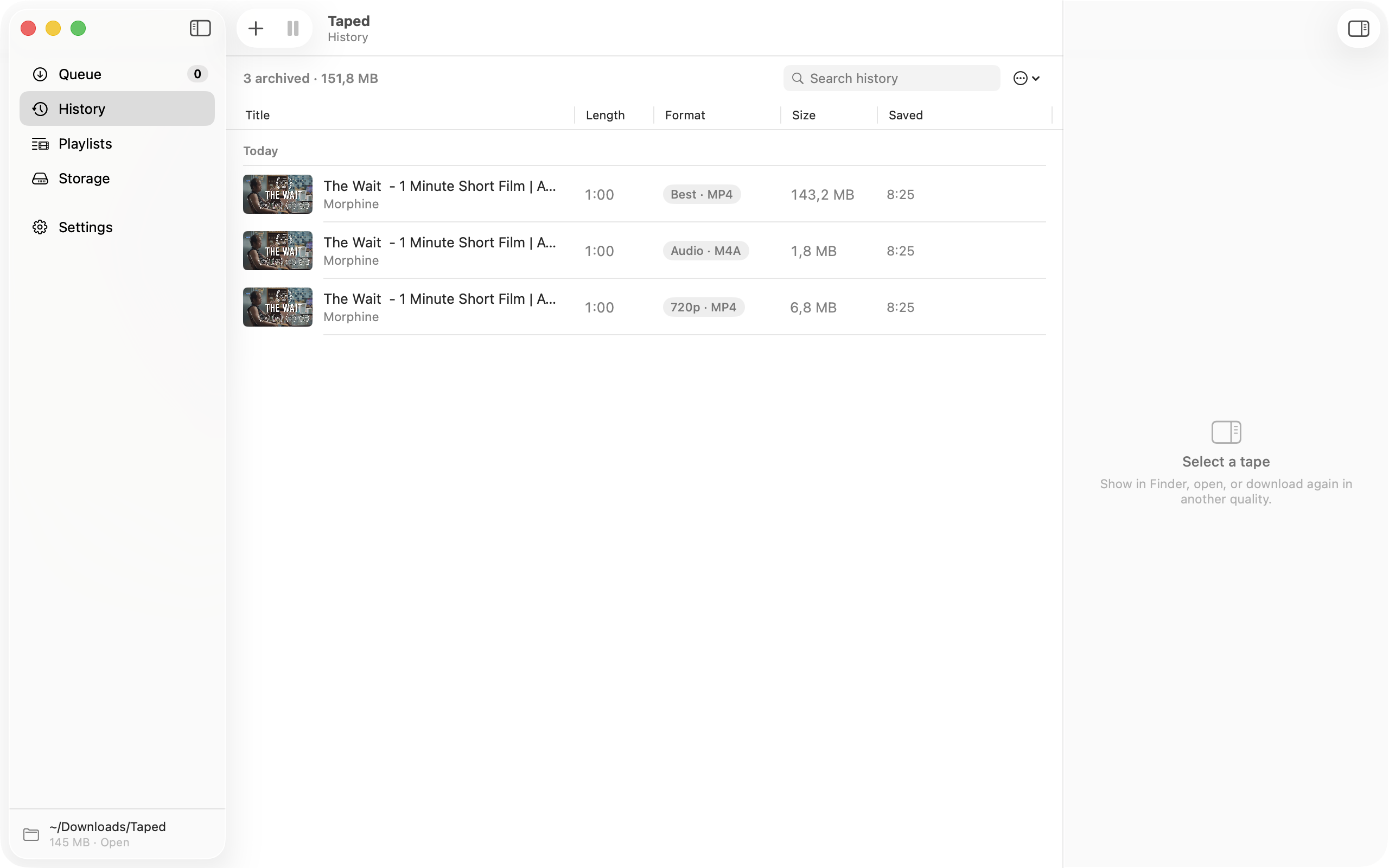
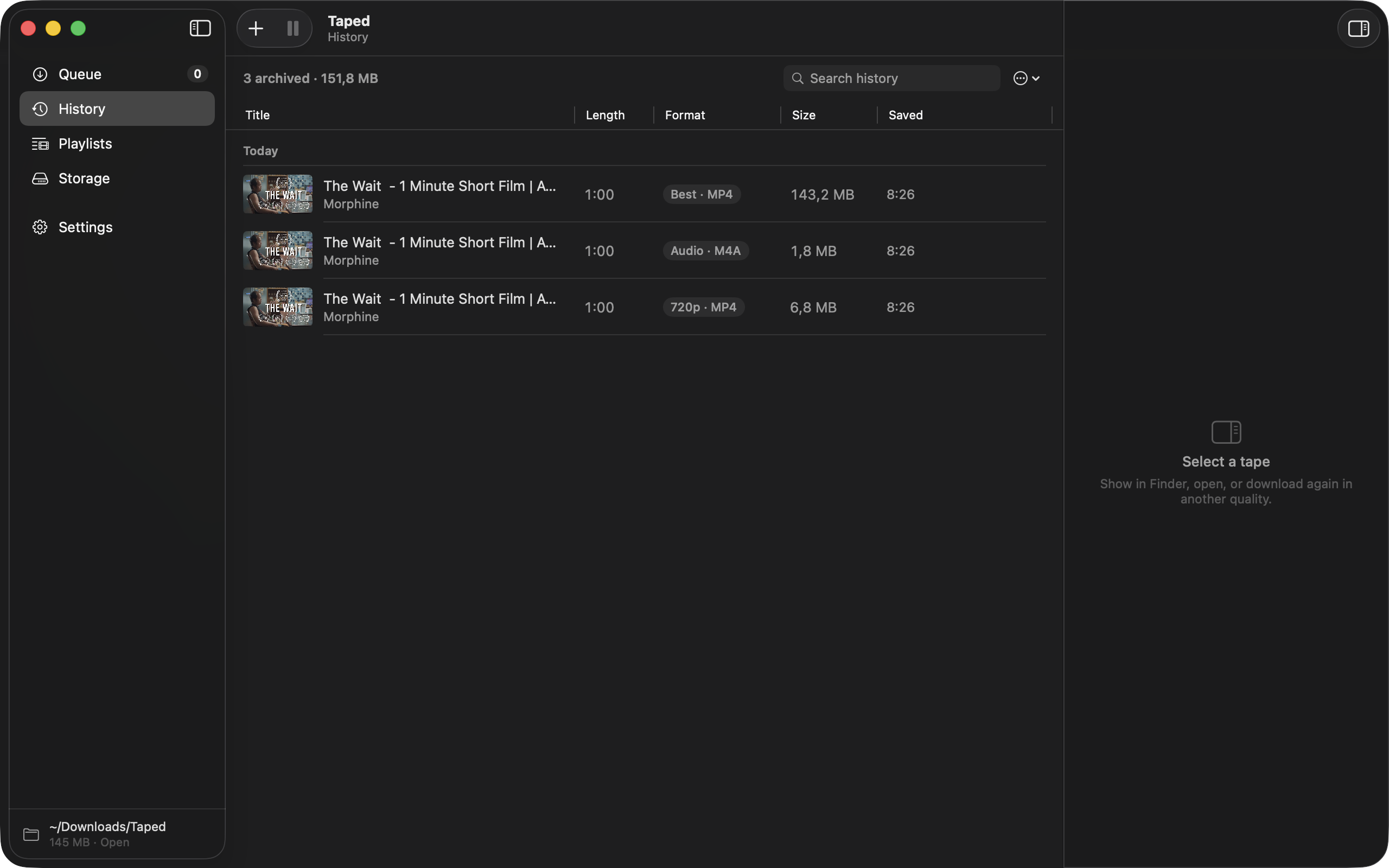
Open it from the popover’s footer, the menubar menu, taped://library, or, if the menubar icon is off, it is the main window.
Queue
Every download in progress or waiting, as a table: title, channel, quality, size, speed, ETA, state. Sort by any column. Select one or many and use the toolbar or the context menu to pause, resume, retry, move to the top, or remove. A banner above the table says why the queue is waiting when it is: download hours, low disk space, battery, a metered connection, an engine update, and what will end the wait.
History
Finished, failed and cancelled downloads, searchable with ⌘F. Failed rows show the reason; when the likely fix is a newer yt-dlp they say so and offer to update. Export as CSV is in the File menu. History is a local SQLite database in ~/Library/Application Support/Taped and survives restarts; Remove finished downloads from the queue in Settings → General decides how quickly finished rows move here.
Inspector
⌘I. For a queued row: quality, container, subtitles, clip, profile and folder, changeable until the download starts. For a playlist: its schedule, auto-download, how many to keep, subfolder, profile and script. For a finished tape: the file, the source link, and its log.
Add sheet
⌘N, or paste a playlist or channel link anywhere on the window. The sheet lists every video with a checkbox and a quality menu; videos already in your History are marked and unticked. ⌘⏎ queues the ticked ones in order. For a single video the sheet is a shorter form of the same thing.
Storage
Space used by Taped, free space on the volume, the number of tapes in History, and a per-folder breakdown that names what filled each folder: a playlist, a profile, a site. Clean up moves tapes older than a chosen number of days to the Trash, with their .nfo, poster and subtitle files. Only files Taped downloaded and still knows about are ever touched; anything you put in the folder yourself is ignored.
Keyboard shortcuts
| Key | Does |
|---|---|
| ⌘N | Add: opens the Add sheet |
| ⌘F | Search the current list |
| ⌘I | Show or hide the inspector |
| ⌘⏎ | Download: in the Add sheet and Quick Capture |
| ⌥⇧D | Quick Capture, from anywhere (changeable) |
Playlists & subscriptions
Paste a playlist link, or a channel’s /videos page, and the Add sheet lets you pick videos. Save playlist keeps it in the Library’s Playlists section so you can come back and press Check later; already-saved videos are always skipped. A saved playlist becomes a subscription when you give it a schedule in the inspector.
Subscription settings
- Check for new videos: every hour, every few hours, daily, weekly, or only at launch. The master switch Check subscriptions automatically in Settings → Automation turns all schedules on or off; Check All Now runs every subscription at once.
- Auto-download: queue new videos as soon as they are found. Off, Taped only counts them and shows a badge on the playlist.
- Keep: Everything, or the newest 3, 5, 10, 20 or 50. When a new video arrives, older downloads from this subscription are moved to the Trash together with their
.nfo, poster and subtitle files. Downloads from anywhere else are never touched. - Subfolder: a folder inside the downloads folder for this playlist’s files.
- Profile: the quality, container and subfolder for this playlist, overriding the app default.
- Script: a script to run after each download from this playlist, instead of the one in Settings → Automation. The same
$TAPED_…variables are set.
Download everything not saved yet in the playlist’s context menu queues the whole backlog once. A watch?v=…&list=… link downloads just that video unless you choose “Whole playlist” in Quick Capture → More.
Automation
Everything outside the app talks to it through three surfaces: the command line, the URL scheme and the status file. They are versioned together with the app.
Command line: taped
The tool ships inside the bundle at Taped.app/Contents/Helpers/taped. Settings → Automation → Install command line tool links it to /usr/local/bin/taped, as does the Homebrew cask.
| Command | What it does |
|---|---|
taped get <url> [--preset P | --profile NAME] [--out DIR] [--clip 1:20-2:05] [--json] [--quiet] | Standalone: download (and convert) with the bundled engine, print progress, exit when done. Does not need the app running. The result is recorded in the app’s History next time it runs. --json prints one JSON object per progress line, then a final {"done":true,"file":"…"}. |
taped add <url>… [--preset P | --profile NAME] | Hand the links to the running app’s queue (launches it if needed). Returns at once. |
taped status [--json] [--watch] | The queue as a table, or the status file verbatim. --watch refreshes until Ctrl-C. |
taped playlists [list | check | download-new] [--json] | Saved playlists; check and download-new ask the running app to do the work. |
taped profiles [--json] | Named profiles from Settings. |
taped update | Update the bundled yt-dlp engine. |
taped version | App, yt-dlp and ffmpeg versions. |
Presets: best p2160 p1440 p1080 p720 p480 p360 audioM4A audioMP3 audioOpus. Exit codes: 0 ok · 1 download failed · 2 usage · 3 app not reachable (for add and playlists).
taped get "https://www.youtube.com/watch?v=C7OQHIpDlvA" --profile Podcast
taped add https://youtu.be/… https://vimeo.com/… --preset p1080
taped status --json | jq '.items[] | select(.state == "downloading") | .title'
URL scheme: taped://
Fire-and-forget. Launches Taped if it is not running. URL-encode the parameters.
| URL | Effect |
|---|---|
taped://download?url=<enc> | Queue one video with the default profile |
…&preset=<preset> | Override quality (presets as above) |
…&profile=<name> | Use a named profile; wins over preset |
…&x-success=<enc url> | Opened when the download finishes; ?id=<uuid>&file=<enc path> appended |
…&x-error=<enc url> | Opened when it fails or is cancelled; ?id=<uuid>&errorMessage=<enc> appended |
taped://batch?url=<playlist or channel> | Opens the Library Add sheet to pick videos |
taped://capture[?url=<enc>] | Opens Quick Capture, optionally pre-filled |
taped://library[?section=queue|history|playlists] | Shows the Library window |
taped://settings[?section=…] | Opens Settings (general, quality, extras, files, network, sites, automation, advanced, about) |
taped://playlists?action=check|download-new | Check every saved playlist, and queue what is new |
A taped://download link with a playlist URL (no v=) behaves like batch. From a shell: open "taped://download?url=https%3A%2F%2Fyoutu.be%2F…&profile=Podcast".
The status file
~/Library/Application Support/Taped/status.json is rewritten atomically by the running app on every queue or playlist change, at most about four times a second. If it is absent, or updatedAt is older than a minute while running is true, the app is not running.
{
  "version": 1,
  "updatedAt": "2026-08-28T10:11:12Z",
  "running": true,
  "appVersion": "1.0.0",
  "downloadsFolder": "/Users/me/Downloads/Taped",
  "profiles": [ { "name": "Podcast", "preset": "audioM4A", "subfolder": "Podcasts", "isDefault": false } ],
  "items": [ {
    "id": "8C5C…", "url": "https://…", "title": "…", "channel": "…",
    "state": "queued | downloading | postProcessing | paused | finished | failed | cancelled",
    "phase": "converting",
    "fraction": 0.42, "speed": 1234567, "eta": 88, "totalBytes": 123456789,
    "preset": "p1080",
    "outputFile": "/Users/me/Downloads/Taped/….mp4",
    "error": "…",
    "addedAt": "…", "finishedAt": "…"
  } ],
  "playlists": [ { "id": "…", "title": "…", "url": "…", "channel": "…",
  "entryCount": 12, "newCount": 2, "lastChecked": "…", "isSubscription": true } ],
  "holds": [ "lowDiskSpace", "offline", "engineUpdating" ]
}
phase appears only while post-processing; fraction, speed (bytes/s) and eta (seconds) only while downloading; outputFile only when finished; error only when failed. holds lists why the queue is waiting, if it is.
Shortcuts actions
Six actions appear in Shortcuts, Automator and Focus automations when Taped is installed:
- Download Video: a URL, an optional quality (empty for the Settings default), and a Whole playlist switch.
- Get Video Info: title, channel, duration, thumbnail and available qualities for a URL, without downloading.
- Download Link on Clipboard: the same as pressing ⌥⇧D and ⌘⏎.
- Show Quick Capture: opens the panel, optionally pre-filled with a URL.
- Check Subscriptions: runs every scheduled playlist now.
- Get Queue Status: the queue as structured output, for a notification or a menu.
Inbox folder
Turn on Watch an inbox folder for links in Settings → Automation. The default folder is iCloud Drive → Taped Inbox; you can choose another. Any .txt, .md, .url or .webloc file that appears there is read for links, each link is queued, and the file is moved into a Done/ subfolder so nothing runs twice. Because the default folder is in iCloud Drive, anything that can save a file there (an iPhone Shortcut, the Files app, another Mac) becomes a remote control for the Mac at home.
A first line of profile: Podcast picks that profile for every link in the file. Otherwise the default profile applies.
An iPhone Shortcut recipe
- In Shortcuts on the iPhone, create a new shortcut and turn on Show in Share Sheet in its details, accepting URLs.
- Add Text. Put
profile: Podcaston the first line if you want one, then the Shortcut Input variable on the next line. - Add Save File. Turn off Ask Where to Save, set the destination to iCloud Drive → Taped Inbox, and set the file name to something unique, for example Current Date formatted as
yyyyMMdd-HHmmsswith.txtappended. - Name it “Tape it”. Share a video from YouTube, Safari or anywhere else and choose it. Within a few seconds, once iCloud has synced, the Mac queues the download.
The Mac has to be awake, or waking on schedule, for the download to start; iCloud Drive syncs the file whenever the Mac is next online.
Download hours
Settings → Automation → Only download during certain hours, then a start and an end time. Queued videos wait for the window; anything already running finishes. A window that crosses midnight, say 23:00 to 06:00, works as expected. The queue banner says when the next window opens. This is for metered or shared connections; the per-download rate limit is under Settings → Network.
After-download script
Settings → Automation → Run a script after each download, then choose a file you wrote. It runs, in the file’s folder, for each download that succeeded, with the file path as its first argument and these variables in the environment:
| Variable | Value |
|---|---|
TAPED_FILE | Full path of the finished file (also $1) |
TAPED_FILENAME | Just the file name |
TAPED_DIR | The folder it is in |
TAPED_TITLE, TAPED_CHANNEL, TAPED_ID, TAPED_URL | From the site |
TAPED_DURATION | Seconds |
TAPED_QUALITY | The preset used |
TAPED_PLAYLIST | The playlist title, when the download came from one |
TAPED_BIN_DIR | Where the bundled yt-dlp and ffmpeg live, so the script can call them |
Scripts are stopped after two minutes. A script that fails is logged and never marks the download as failed. Make the file executable (chmod +x) and start it with a shebang line. A playlist can name its own script in the inspector, which replaces this one for its downloads.
Files & media servers
Where files go
~/Downloads/Taped by default; change it in Settings → Files. Group by site in subfolders adds a folder per site (YouTube/, Vimeo/). Profiles and playlists can add a subfolder of their own. Show in Finder is in the popover, the Library, the context menu and the finished notification.
Filename template
Any yt-dlp output template works, with a live preview under the field: %(title)s, %(id)s, %(channel)s, %(upload_date)s, %(quality)s, %(ext)s. Slashes are not allowed in the template itself; use the subfolder options or the media server layout for folders. The default is %(title)s.%(ext)s.
Media server layout
Settings → Files → Media server layout. When it is on it decides folders and file names, so the template above is turned off.
- Off: files are named by the template.
- Channel folders: one folder per channel with dated file names. Plex scans it as “Other Videos”, Jellyfin as “Home Videos”. Point the library at the downloads folder.
- Show and season: each channel becomes a show, each year a season and each upload date an episode:
Channel/Season 2026/Channel - s2026e0313 - Title.mp4. Every scanner understands this. Atvshow.nfois written once per channel.
Write .nfo files adds a sidecar with the title, description, date and channel that Plex, Jellyfin, Emby and Infuse read. Keep the thumbnail as a poster saves it as Title-thumb.jpg next to the file. Subscriptions’ rolling archive removes both with the video.
Settings reference
Settings has a search field; typing a word finds the control and scrolls to it.
General: launch at login; show Taped in the menu bar (off makes it a Dock app); an error badge on the menubar icon; open the Library window at launch; the Quick Capture hotkey; what to do after a download finishes (notify, reveal, open); remove finished downloads from the queue after a delay; reopen the welcome tour.
Quality: default quality and container; the audio format for audio-only presets; Mac-compatible on or off; the converter (VideoToolbox or x264); the Profiles list with its editor and default.
Extras: embed metadata, thumbnail and chapters; download subtitles or captions, with the language list and the embed-or-keep choice.
Files: the downloads folder; the filename template with preview; group by site in subfolders; the media server layout; .nfo files; keep the thumbnail as a poster.
Network: how many downloads run at once; parallel fragments for HLS and DASH; a rate limit per download; a proxy; the free-space floor; pause on battery below a level; pause on hotspots and Low Data Mode.
Sites: cookies from a browser (Safari, Chrome, Firefox) and which browser profile; skip videos already saved; how to treat live streams and premieres (record from the start, wait for scheduled ones); the list of supported sites.
Automation: the Shortcuts actions, the Share menu and Services entries, the URL scheme, the command line tool installer, the inbox folder, download hours, the after-download script, and the master switch for subscription checks with Check All Now.
Advanced: the yt-dlp engine: current versions, the stable or nightly channel, a manual check; ffmpeg and Deno versions; extra yt-dlp arguments for the cases the settings do not cover; Show Logs; reset.
About: version, check for app updates, licences and acknowledgements.
Troubleshooting
A site stopped working
Sites change their players; yt-dlp catches up, usually within days. Taped checks for a new yt-dlp once a day and installs it. To hurry it along, Settings → Advanced → Engine → Check, or switch to the nightly channel, which gets fixes first. Failed rows say “Try updating yt-dlp” when that is the likely cause. If it is still broken a couple of days after a yt-dlp release, open an issue with the link and the log.
“This content is protected and can’t be archived”
The site uses DRM. Taped refuses it, by design, and there is no setting that changes that.
“Sign in to confirm”, private, members-only or age-restricted videos
The site wants a signed-in browser. Settings → Sites → Cookies from browser, choose the browser you are signed in with, and try again. Safari needs Full Disk Access for Taped (System Settings → Privacy & Security); Chrome asks for keychain access once. Cookies are read locally and sent only to that site. Leave the setting off when you do not need it.
ffmpeg, Deno or yt-dlp errors
All three are bundled and installed once into ~/Library/Application Support/Taped/bin. If a download fails with a message naming one of them, Settings → Advanced → Engine shows their versions and can reinstall them. Deleting that bin folder and relaunching reinstalls everything from the app bundle.
“Taped can’t be opened”
The app is signed and notarized, so Gatekeeper should let it through. If a download was interrupted the DMG may be damaged. Check it against SHA256SUMS.txt and download again. If macOS says the developer cannot be verified, right-click the app and choose Open once; that should never be needed with a fresh download, so please report it.
The file will not play
Turn on Mac-compatible in Settings → Quality, or re-download that one video with a profile such as Watch on Mac. Files archived with Mac-compatible off keep the site’s original codecs; IINA and VLC play those.
Quick Capture does not open
Another app may own ⌥⇧D. Change the key in Settings → General, or find and change the other app’s. If Taped is a Dock app and hidden, the hotkey still works.
Downloads are slow
Raise Parallel fragments in Settings → Network for HLS and DASH sites, check that no rate limit is set, and that no download window or hold is active; the queue banner says if one is. Sites throttle; a proxy rarely helps.
The queue is waiting and I do not know why
The banner at the top of the popover and the Library names the reason: download hours, low disk space, battery, a metered connection, offline, or an engine update. Each can be turned off in Settings → Network or Automation.
Logs
Settings → Advanced → Show Logs exports the app log and the last yt-dlp output. When you report a problem, include the link and that file; it is usually enough to reproduce it. The log contains the URLs you downloaded and nothing about your account.
Starting over
Quit Taped, then delete ~/Library/Application Support/Taped (history, settings, the engine) and ~/Library/Preferences/com.tapedapp.app.plist (dev.taped.app.plist if you installed before 1.0). Your downloaded files are not touched.
FAQ
The short questions (which sites work, why it is free, why it is 200 MB, whether it is sandboxed) are answered on the front page. Everything else: the issue tracker or support@tapedapp.com.
This page describes Taped 1.0.0. Last updated 10 September 2026.