Everything Taped does.
One group at a time, in the order you will meet them. Nothing here needs an account, a plug-in or a terminal. The terminal is there if you want it.
Getting a link in should take one gesture.
Taped lives in the menubar and waits. Paste, press a key, share, drag, or write a file into a folder from your phone, whichever is closest to hand. Every route lands in the same queue with the same options.
The popover
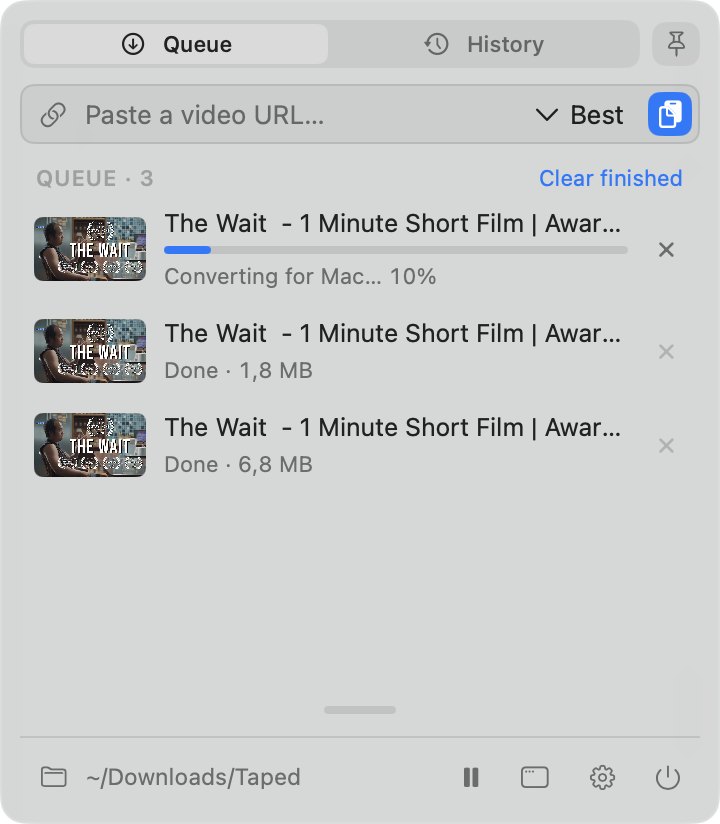
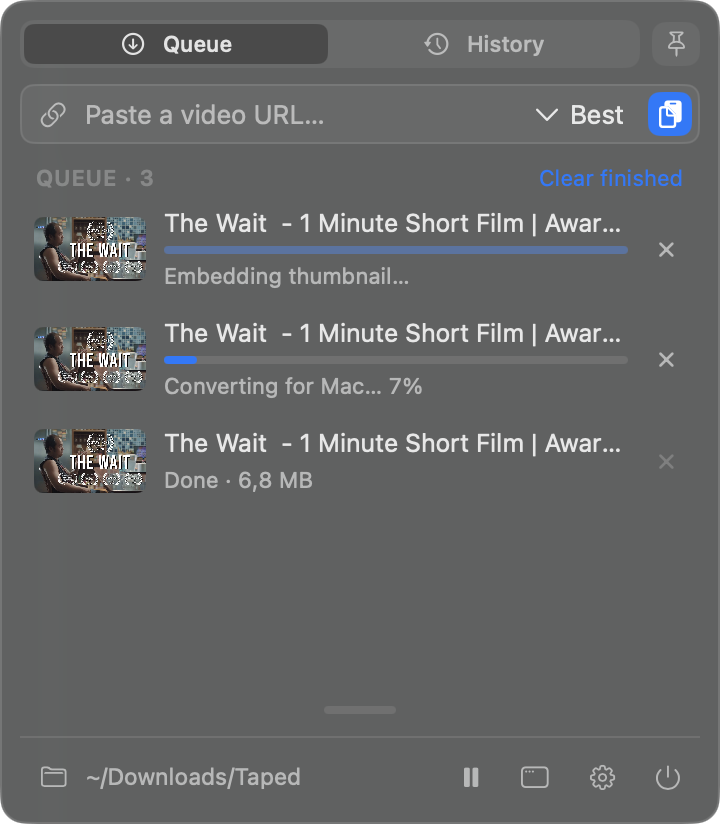
Click the cassette in the menubar. Paste a link, pick Best, 1080p, 720p or Audio, watch the progress bar. The queue pauses, resumes and retries; history is searchable; Show in Finder is one click. Pin it to keep it open while a batch runs. The icon itself shows progress, so you can close the popover and glance up.
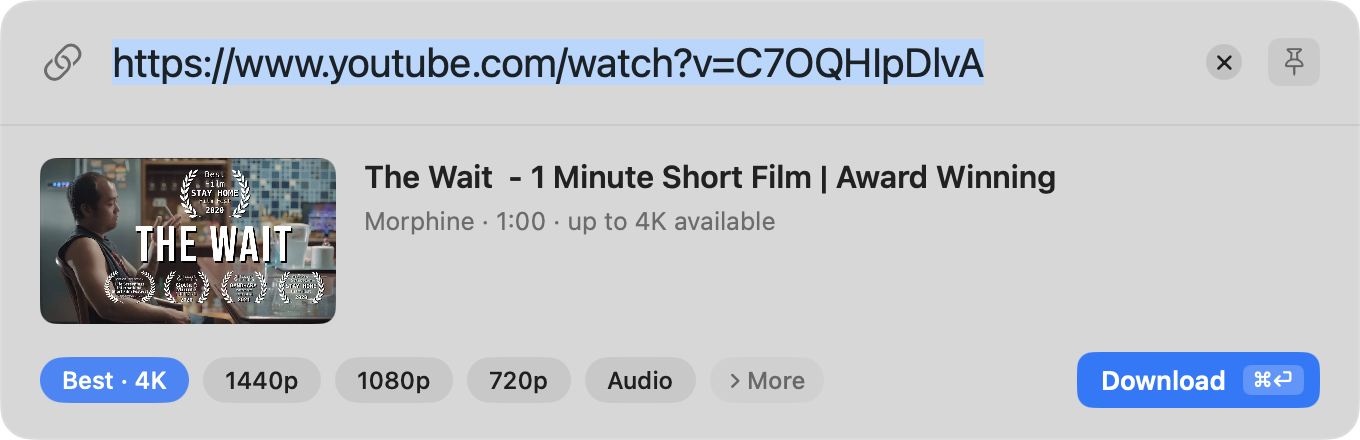
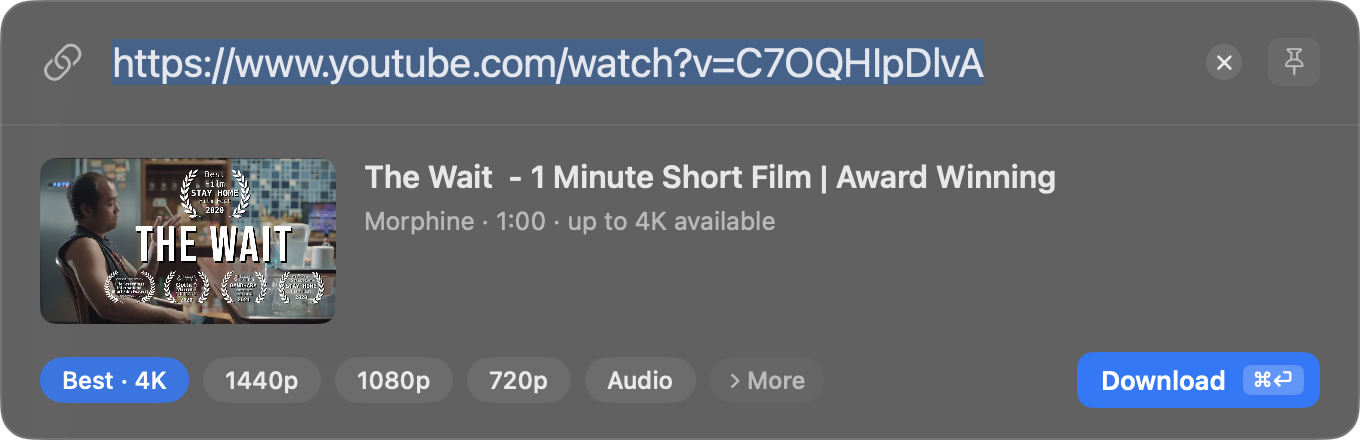
Quick Capture, ⌥⇧D
Press it in any app. If the clipboard holds a link, the panel is already filled in: title, channel, duration, and only the qualities the site really offers. ⌘⏎ downloads and the panel disappears. More opens the per-video options.
- Change the hotkey in Settings → General
- Works whether Taped is a menubar app or a Dock app
- Esc closes without doing anything
Share menu and Services
“Tape it” sits in the macOS Share menu: Safari’s share button, Mail, Notes, anywhere a Share button exists. Select a link in any app and the Services menu offers “Tape it” (download with your defaults) and “Tape it with options…” (opens Quick Capture). Both can be given a system-wide key in System Settings → Keyboard.
The best the site has, in a file that plays.
Taped asks the site what it actually offers and shows only that. The default is a file QuickTime, Finder previews and an iPhone can all open; the original streams are one switch away.
Presets and containers
Best, 2160p, 1440p, 1080p, 720p, 480p, 360p, and M4A, MP3 or Opus for audio-only. The container is MP4, MKV, WebM or whatever the site sends. The default lives in Settings → Quality; every capture can override it for one video.
- Presets that the site cannot supply are greyed out, not hidden
- Audio-only downloads skip the video streams entirely, so they are small and fast
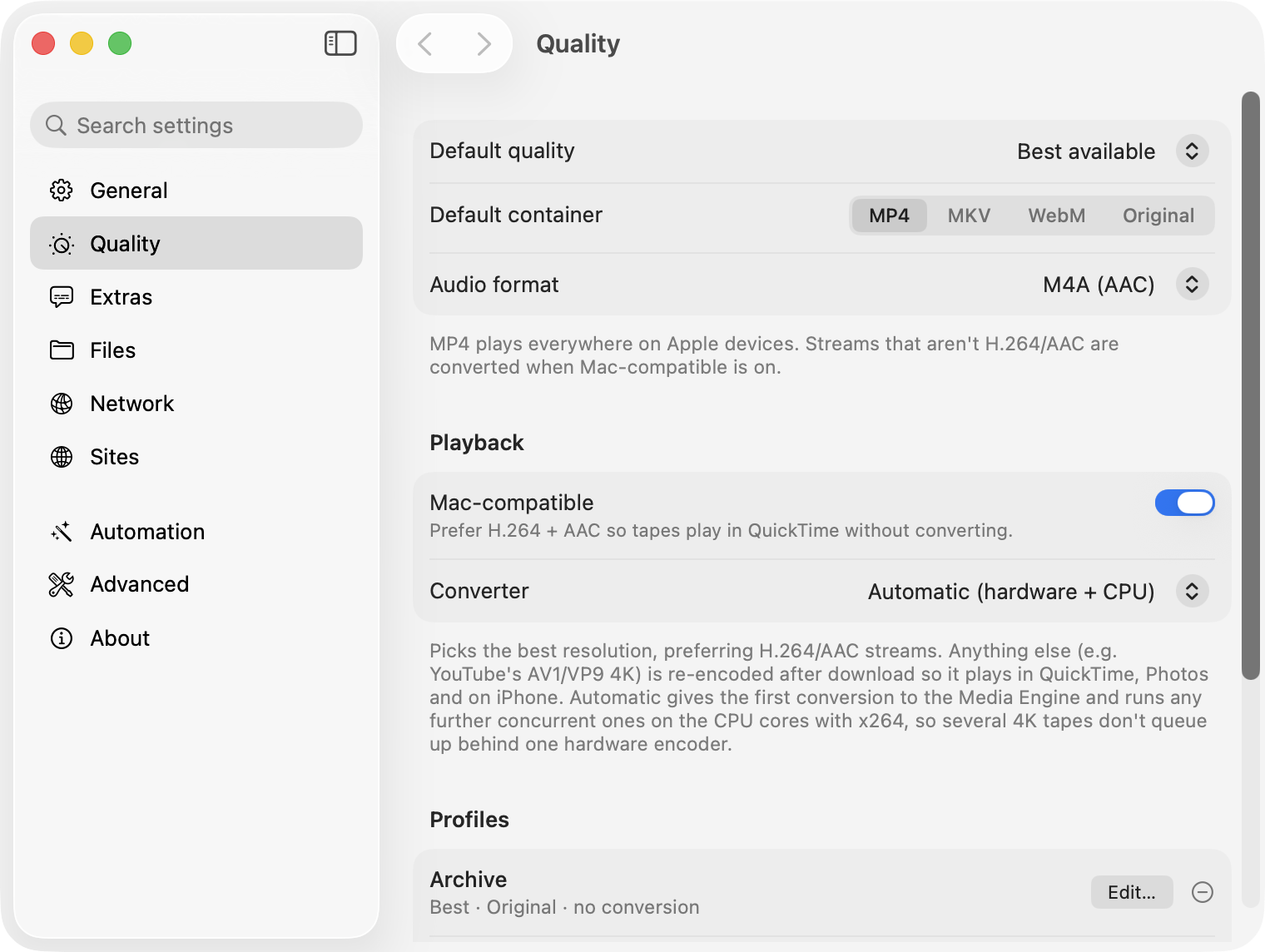
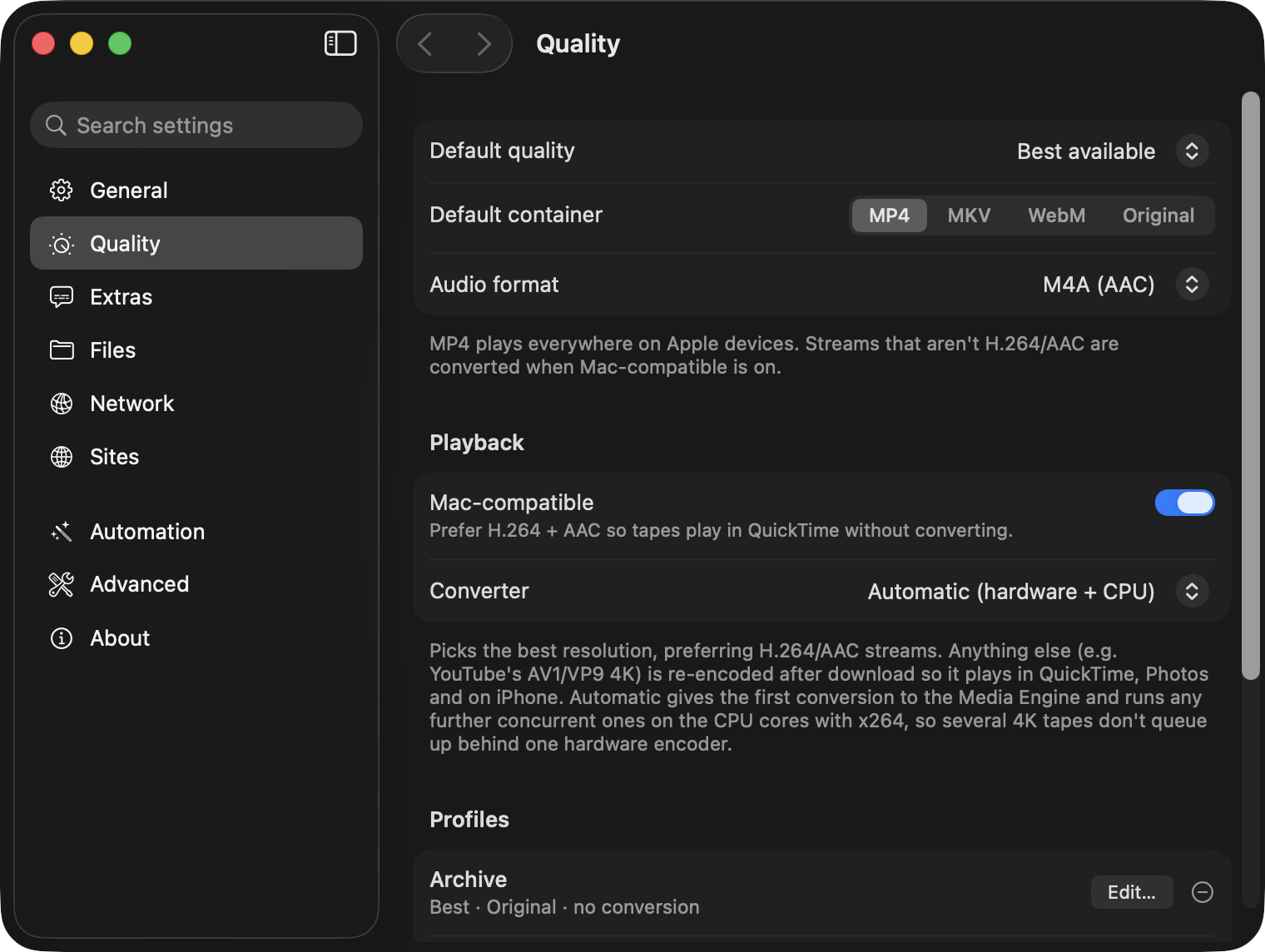
Mac-compatible
On by default. Taped keeps the best resolution and delivers H.264/AAC in an MP4. It re-encodes only when the source has no compatible stream (YouTube above 1080p is usually VP9 or AV1), and it does that with VideoToolbox, on the media engine, so a 4K hour takes minutes and the fans stay quiet. Switch it off and you get the original streams untouched, in an MKV if they need one.
Profiles
A profile bundles a quality, a container and a subfolder under a name. Three come set up: Podcast, Archive and Watch on Mac. You can add your own. Pick one in Quick Capture → More, on a playlist, in the browser extension, with --profile on the command line or &profile= in a URL.
Audio only, M4A
Best, original streams, MKV
1080p, H.264, MP4
A window for the big jobs.
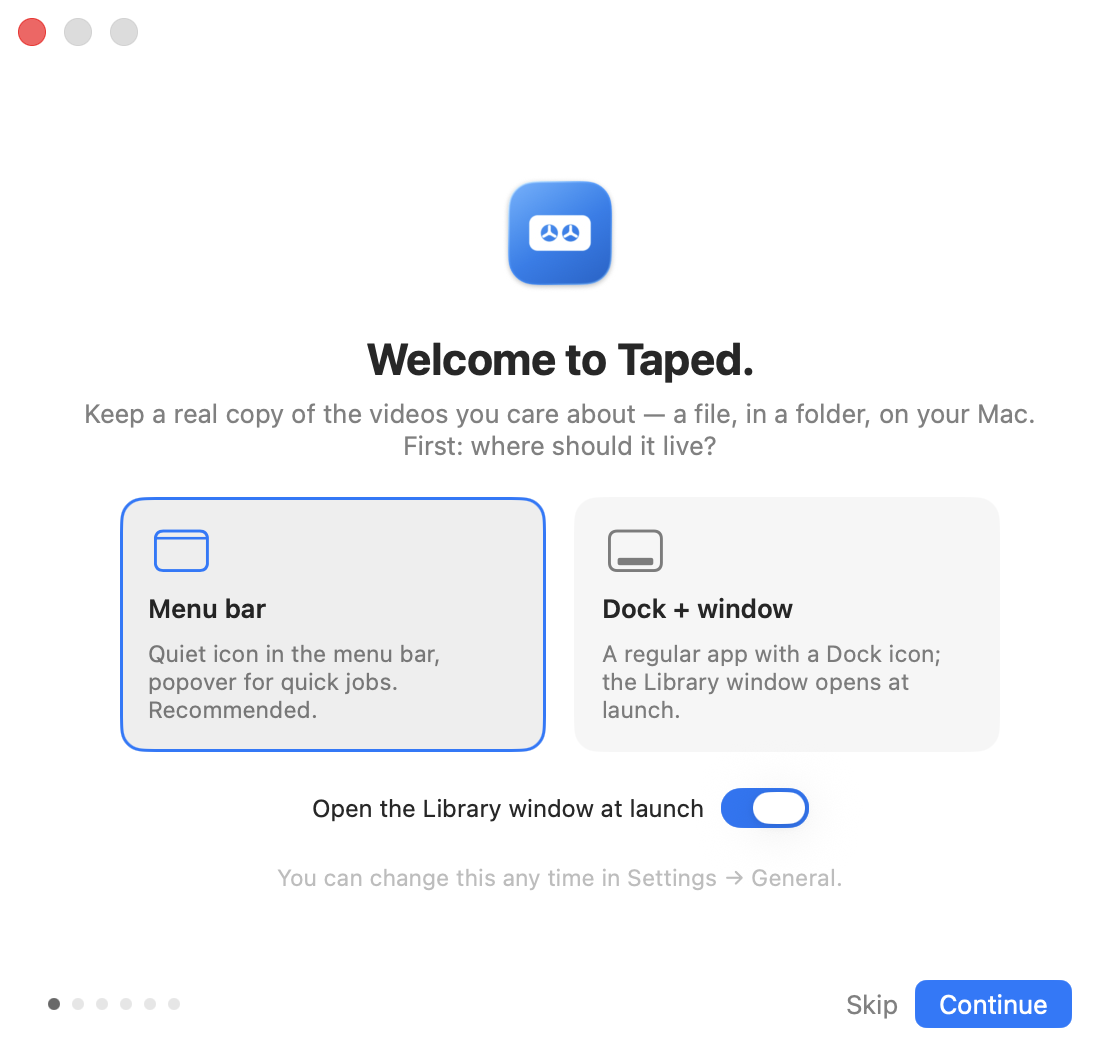
The popover is for one link. The Library is for forty: a proper table with a sidebar, an inspector and keyboard shortcuts. Open it from the popover, the menubar menu, taped://library, or make it the main window by turning the menubar icon off.
Queue and history
Every download is a row: title, channel, quality, size, speed, state. Sort by any column, select several and pause, resume, retry or remove them together. Finished tapes move to History, which is searchable and exportable as CSV. Rows that failed say why, and offer “Try updating yt-dlp” when that is the likely fix.
- ⌘N add · ⌘F search · ⌘I inspector · ⌘⏎ download
- Drop links anywhere on the window
- Right-click for Show in Finder, Copy URL, Open on site
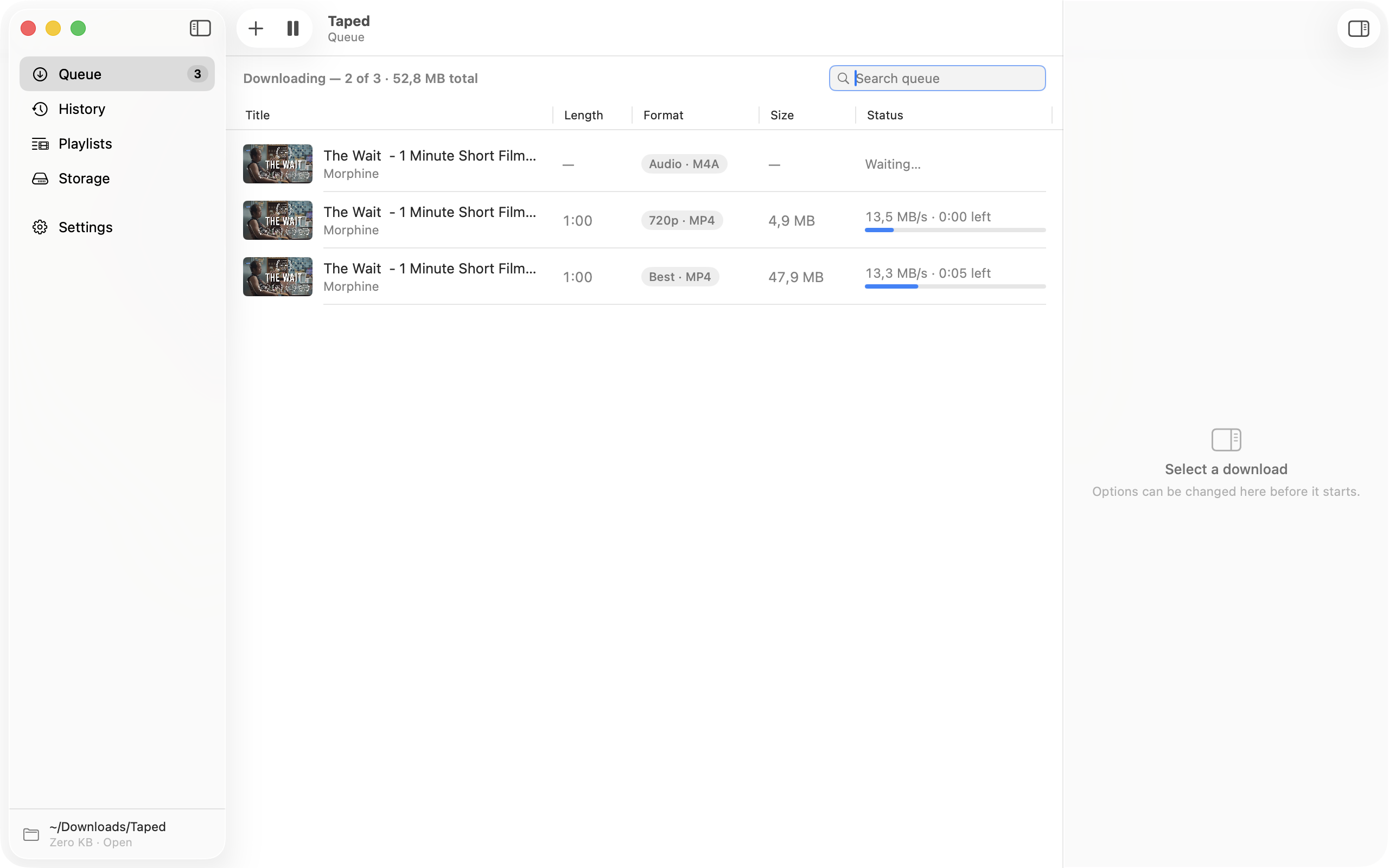
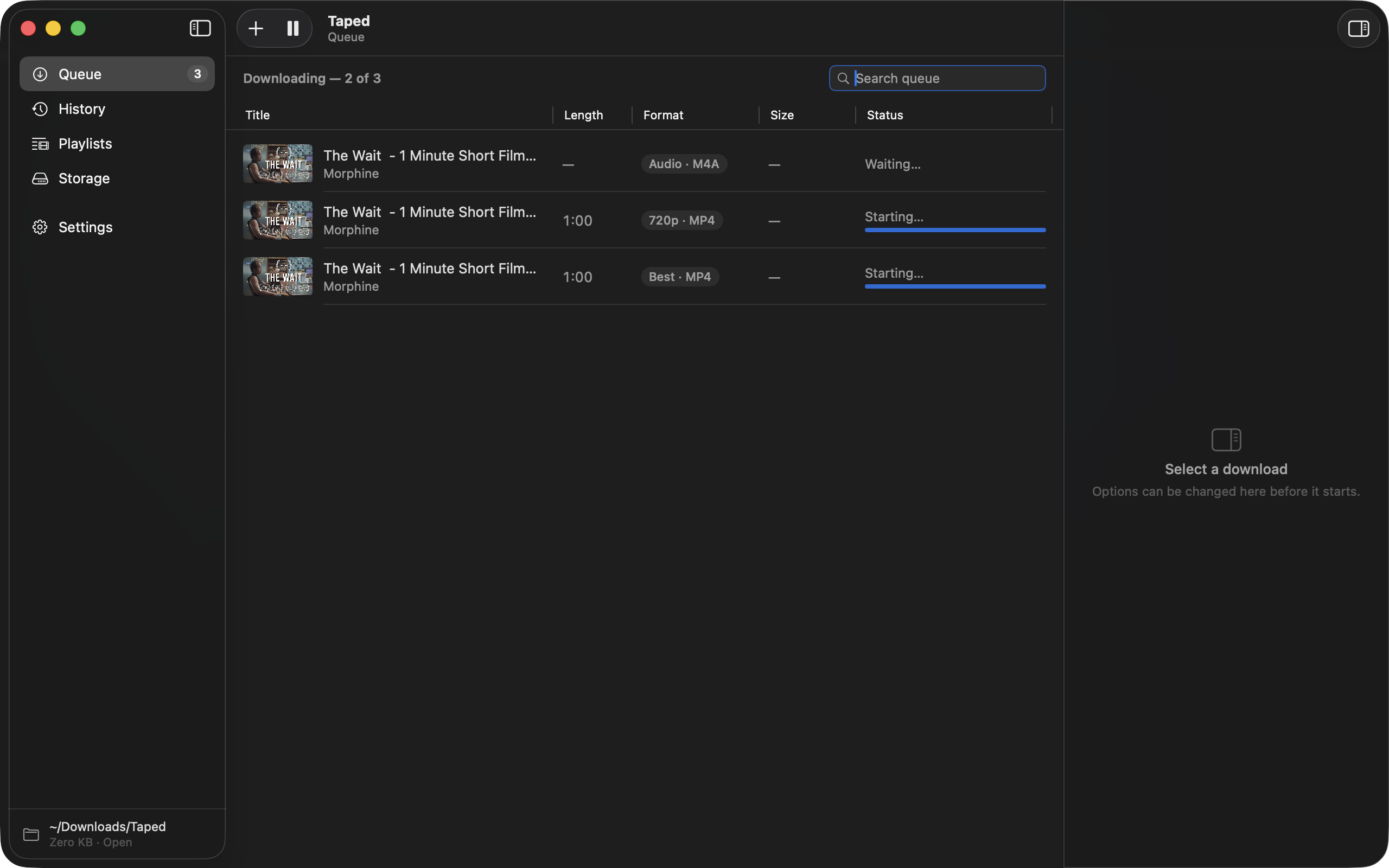
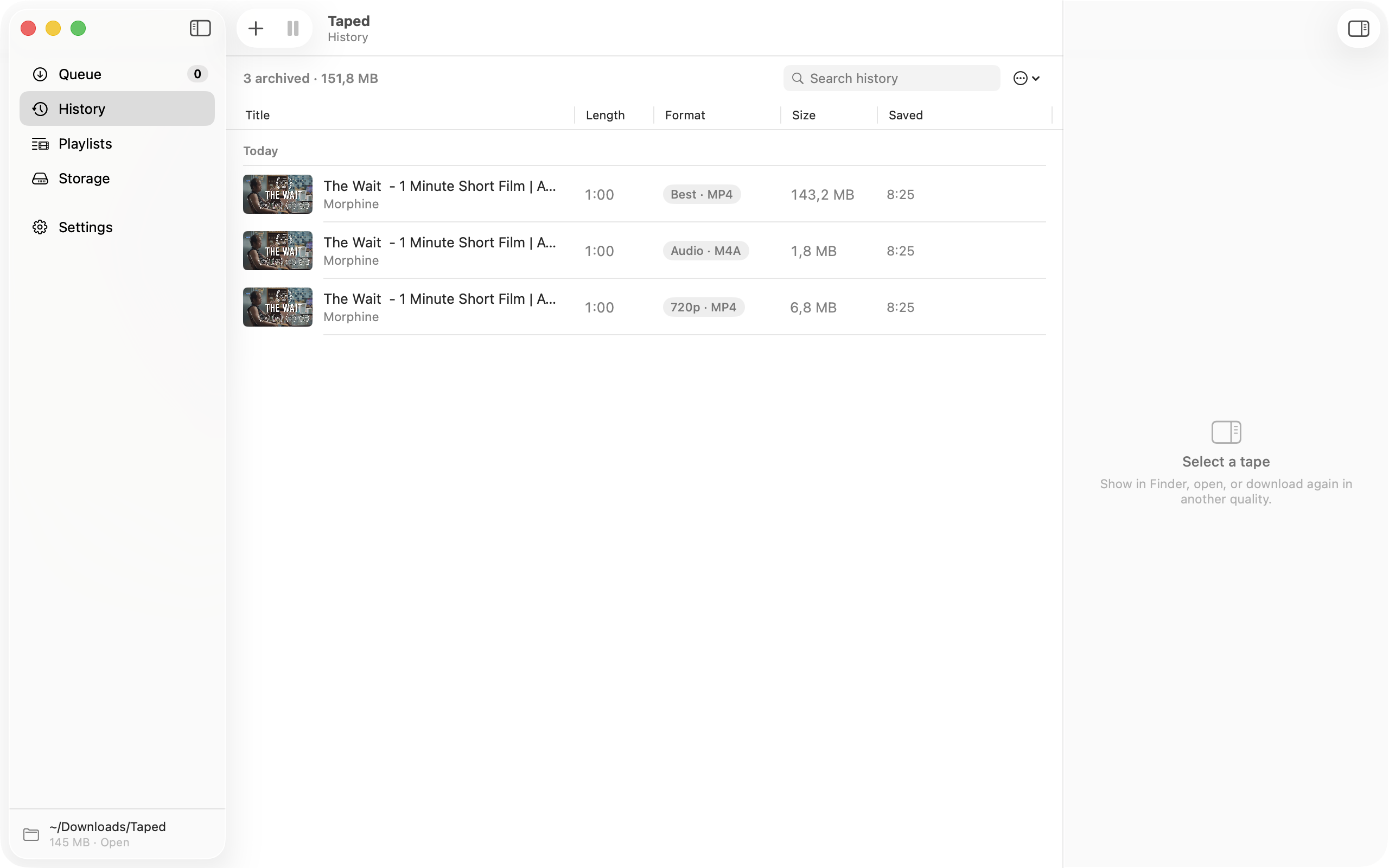
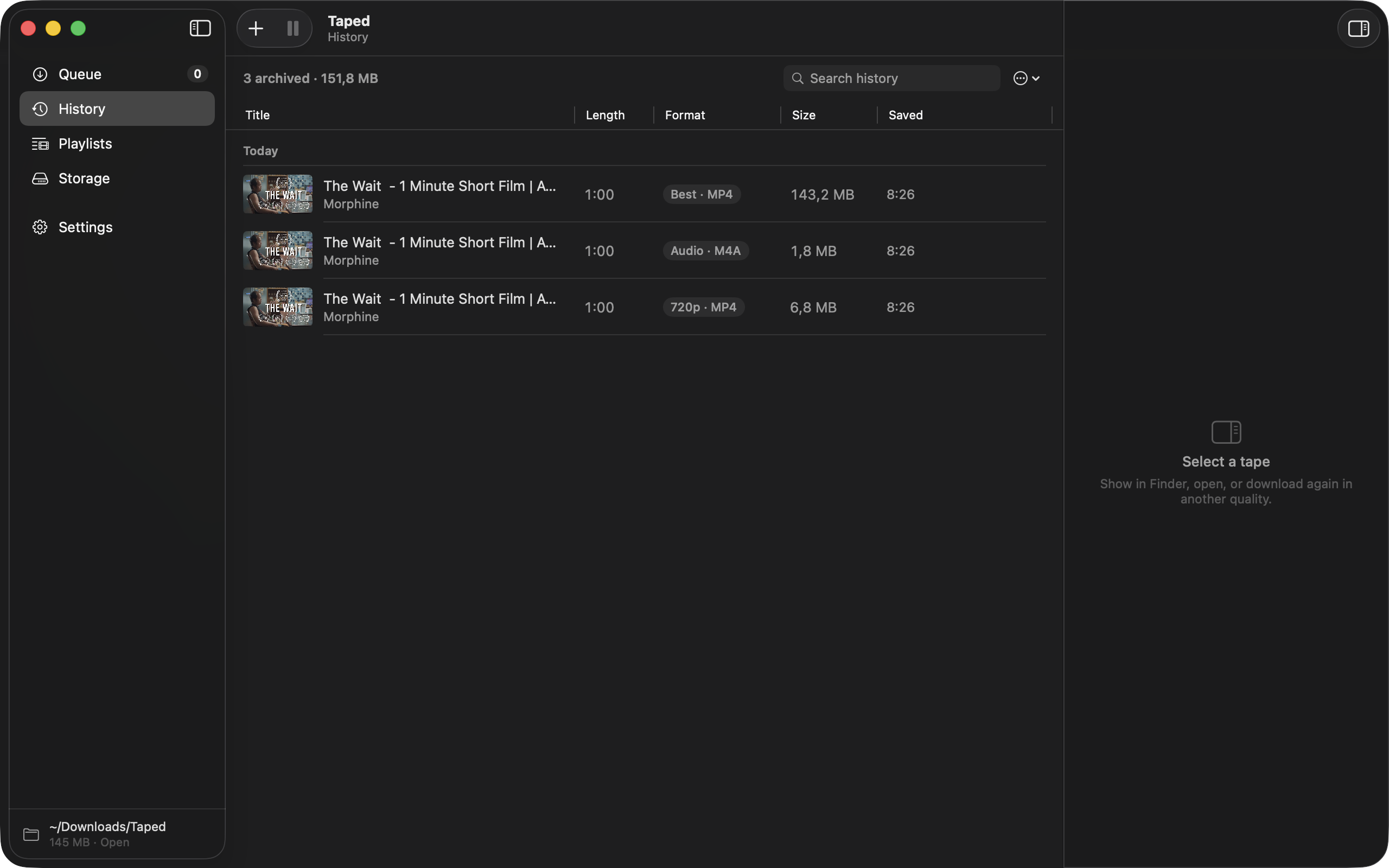
The inspector
Select a queued row and change its quality, container, subtitles, clip or folder before it starts. Select a playlist and the same panel holds its schedule, profile, subfolder, script and how many to keep. Select a finished tape and you get its file, its source and its log.
The Add sheet
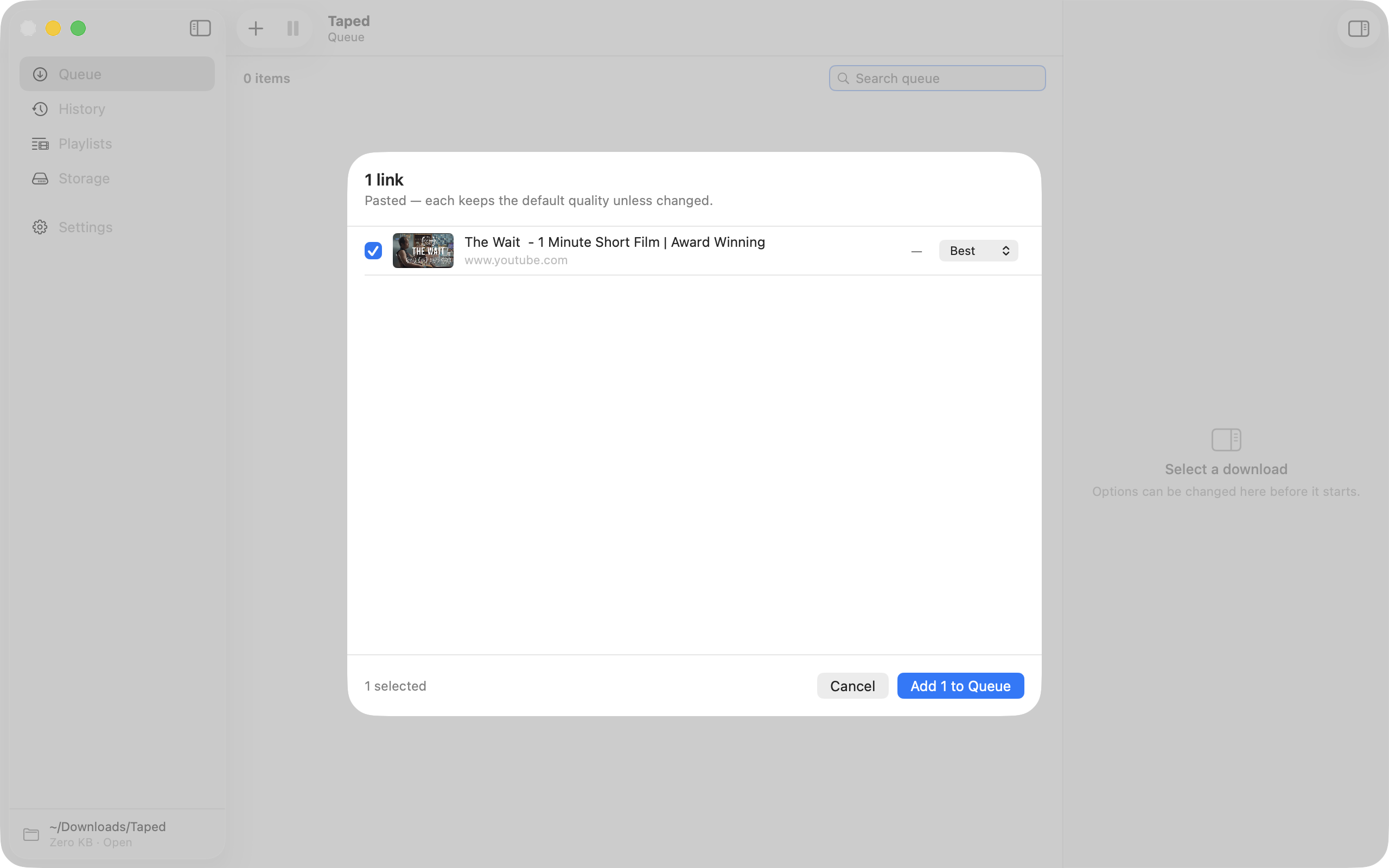
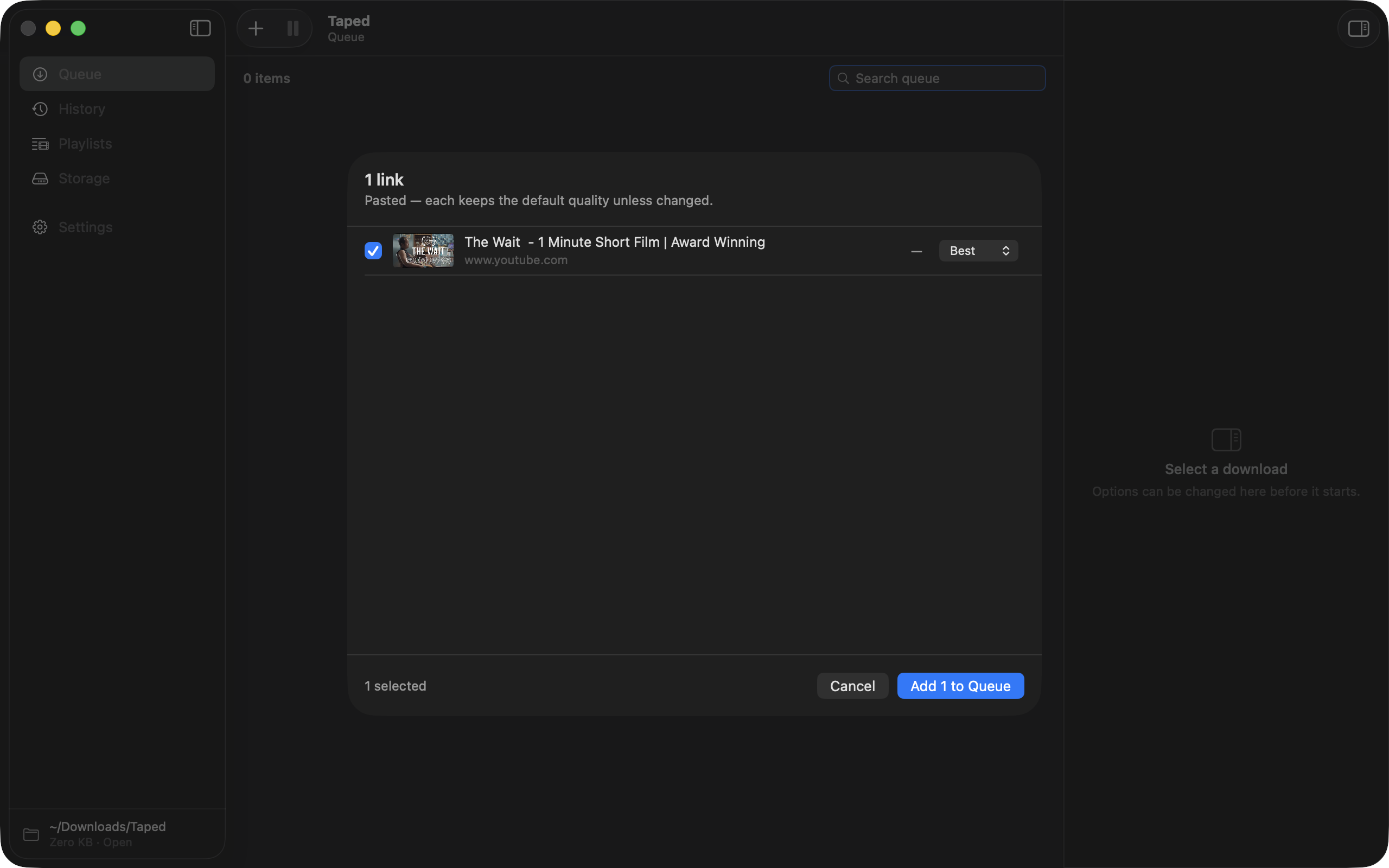
Paste a playlist or a channel link and the sheet lists every video with a checkbox and its own quality menu. Videos you already have are marked and unticked. Tick what you want, press ⌘⏎, and they join the queue in order.
Storage
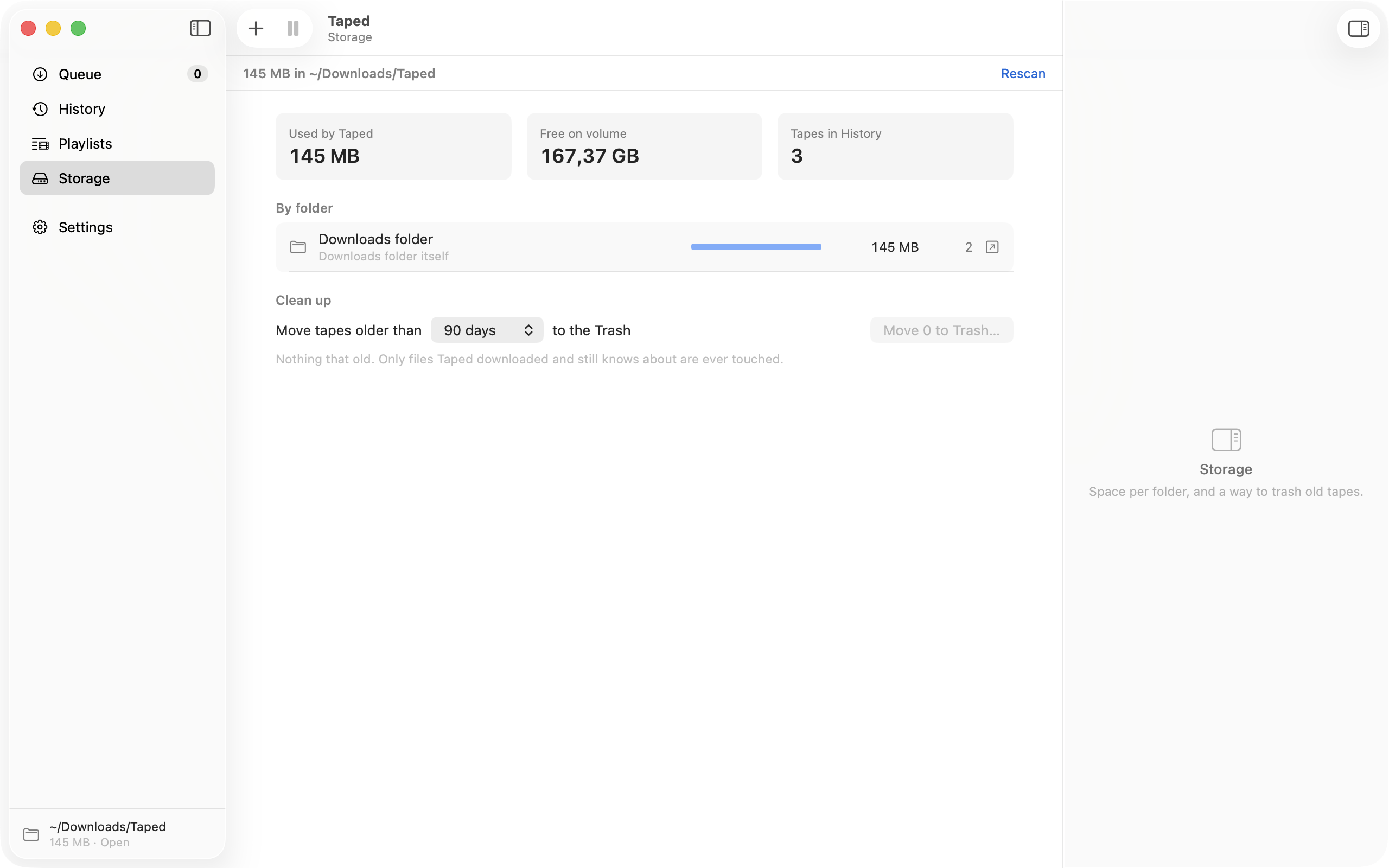
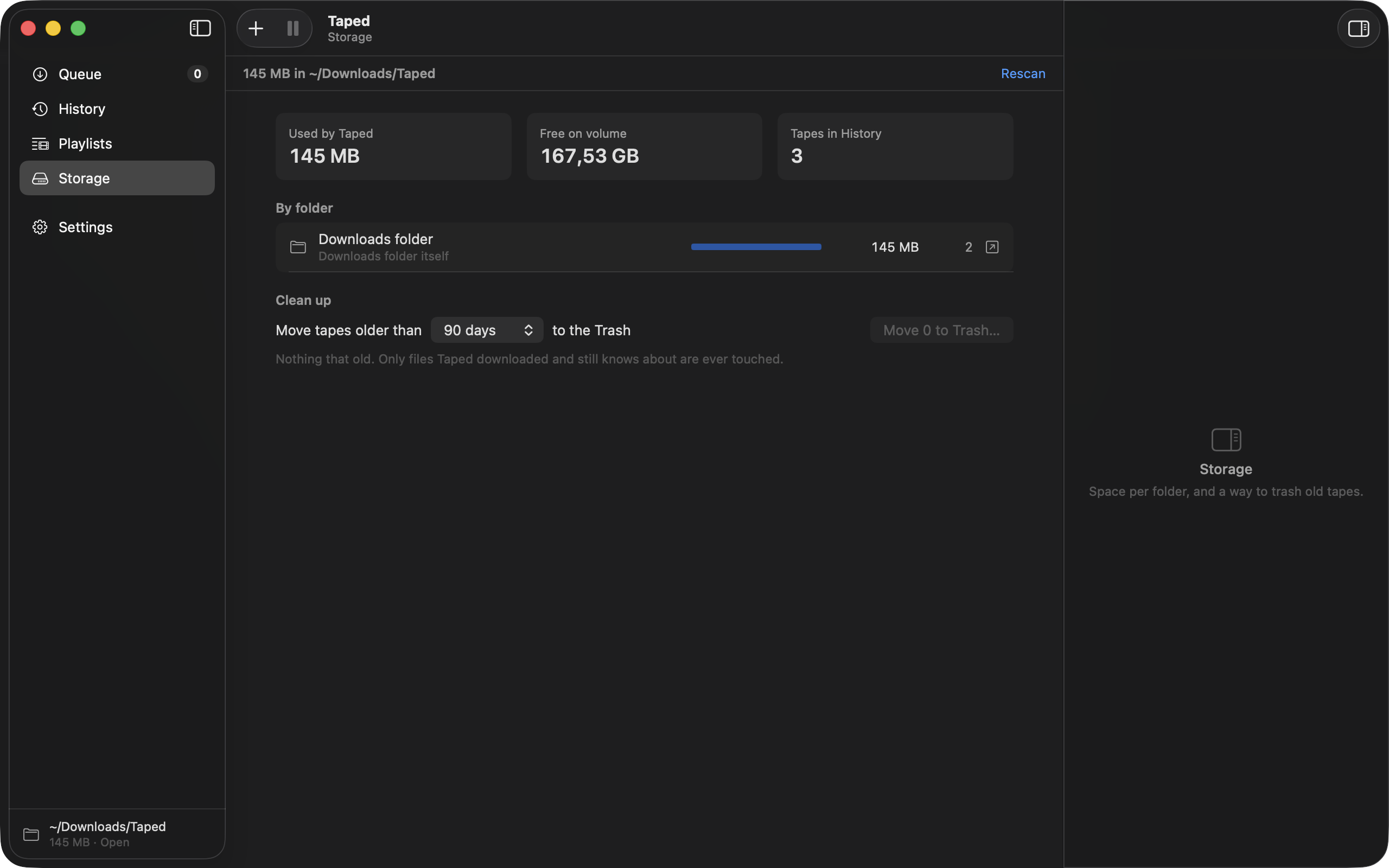
How much the tapes weigh, folder by folder, and how much room is left on the volume. Each folder says what filled it: a playlist, a profile, a site. One control moves tapes older than a chosen age to the Trash, with their sidecars. Only files Taped downloaded and still knows about are ever touched.
Save a playlist once. Let it keep itself.
A saved playlist is a bookmark Taped can re-check. Give it a schedule and it becomes a subscription: new videos are found and queued, and if you want, the old ones are cleared out, so a channel takes a fixed amount of disk forever.
watch?v=…&list=… links download just that video unless you choose “Whole playlist”. Already-saved videos are skipped in every check.
Three surfaces, and a script when a file lands.
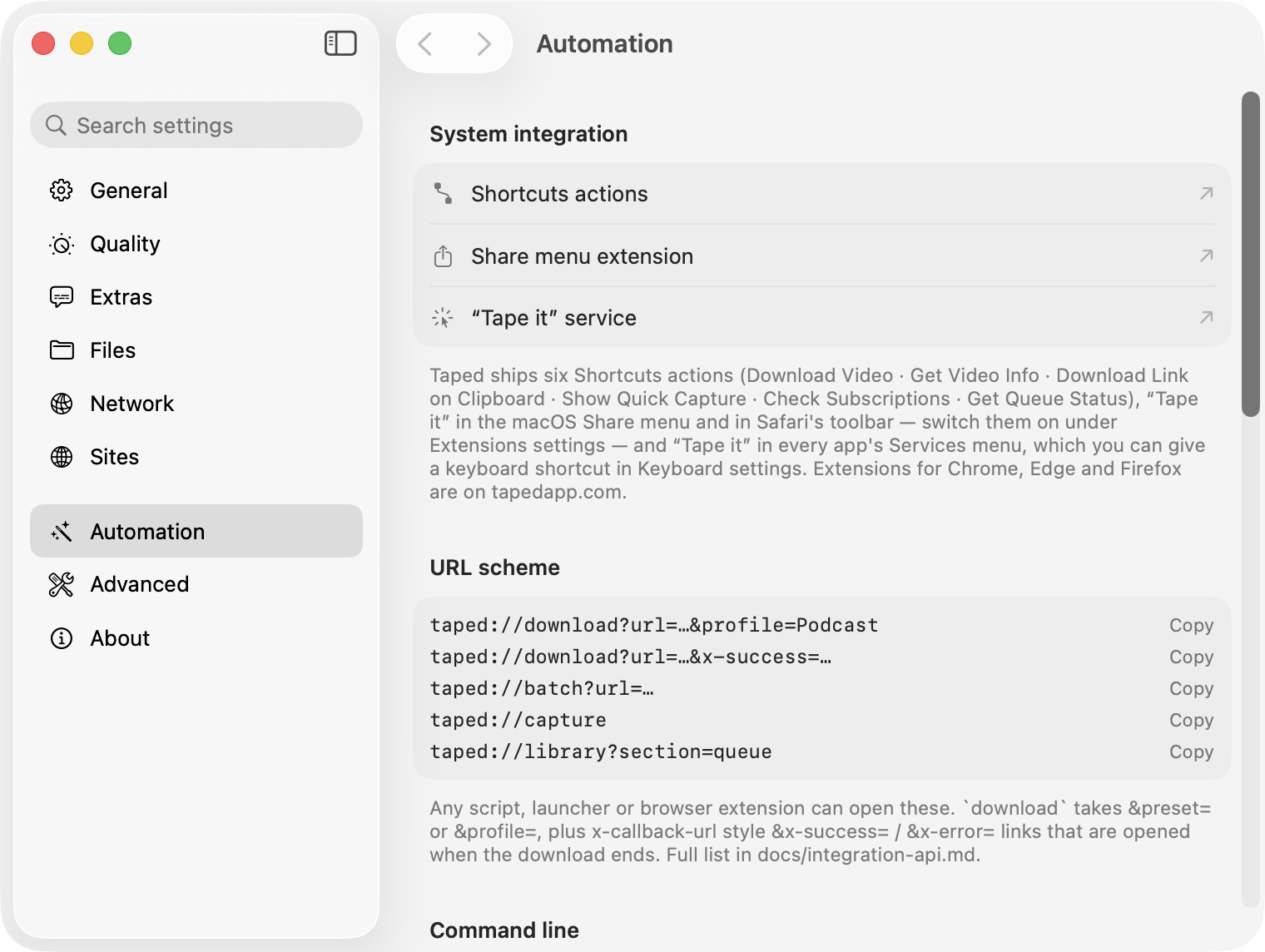
Everything outside the app (extensions, Raycast, Shortcuts, your own scripts) talks to Taped through a command line, a URL scheme and a status file. They are versioned with the app and documented on the Support page.
The taped command line
taped get is standalone: it downloads and converts with the bundled engine, prints progress, exits when the file is done, and records the result in History next time the app runs. taped add queues links in the running app; status, playlists, profiles, update and version do what they say. --json everywhere, for scripts.
- Install with one click from Settings → Automation, or from the Homebrew cask
- Exit codes you can branch on: 0 ok, 1 failed, 2 usage, 3 app not reachable
$ taped get https://youtu.be/C7OQHIpDlvA --profile Podcast
Kraftwerk Live at Tokyo · 1:12:04 · M4A
████████████████████░░░░░ 81%  4.2 MB/s  0:14
→ ~/Downloads/Taped/Podcasts/Kraftwerk Live at Tokyo.m4a

$ taped add https://youtu.be/… https://vimeo.com/… --preset p1080
$ taped status --json | jq '.items[] | select(.state=="downloading")'
URL scheme and x-callback
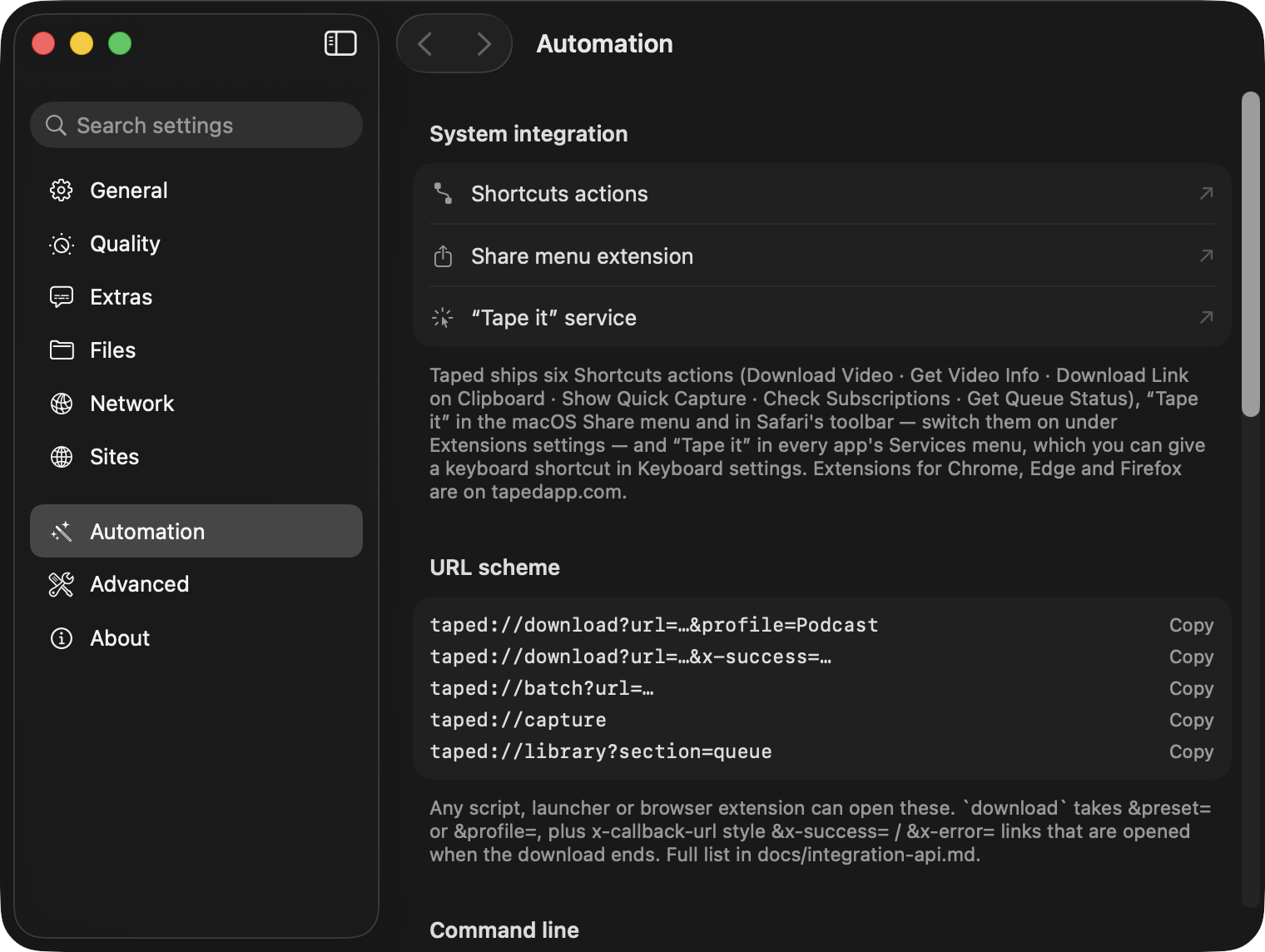
taped://download?url=… queues a video; add &preset=p1080 or &profile=Podcast. &x-success= and &x-error= are opened when the download ends, with the file path or the error appended, so Shortcuts, Alfred, Keyboard Maestro and Raycast can wait for the result. batch, capture, library, settings and playlists open the matching part of the app.
A downloads folder Plex can scan as-is.
Turn on a media server layout in Settings → Files and Taped names files and folders the way scanners expect, and writes the sidecars they read. Point Plex, Jellyfin, Emby or Infuse at the folder; nothing to import, nothing to rename.
Two layouts
Channel folders makes one folder per channel with dated file names, scanned as “Other Videos” in Plex and “Home Videos” in Jellyfin. Show and season turns each channel into a show, each year into a season and each upload date into an episode (s2026e0313), which every scanner understands; a tvshow.nfo is written once per channel.
- .nfo sidecars with title, description, date and channel
- The thumbnail kept as -thumb.jpg poster
- Subscriptions’ rolling archive removes the sidecars with the file
~/Downloads/Taped/
└── Kurzgesagt/
    ├── tvshow.nfo
    ├── poster.jpg
    └── Season 2026/
        ├── Kurzgesagt - s2026e0313 - The Egg.mp4
        ├── Kurzgesagt - s2026e0313 - The Egg.nfo
└── Kurzgesagt - s2026e0313 - The Egg-thumb.jpgNothing leaves your Mac that you did not ask to send.
No account, no analytics, no telemetry. The only network traffic is to the site you are downloading from and two update checks a day. The full list is short.
Signed, notarized, open
Taped is signed with a Developer ID, notarized by Apple and runs under Hardened Runtime. It is not sandboxed, because it runs yt-dlp and FFmpeg as child processes, which is also why it is not on the App Store. The source is MIT-licensed.
- yt-dlp updates itself once a day, stable or nightly channel
- The app updates through Sparkle, with signed appcasts served from this site
- Browser cookies, if you turn them on, are read locally and sent only to the site they belong to
- DRM-protected streams are refused, by design